 KES
 UGX - Uganda
 TZS - Tanzania
 RWF - Rwanda
 NGN - Nigeria
 ZAR - South Africa
 USD - Zimbabwe
 GHS - Ghana
 ETB - Ethiopia
 ZMW - Zambia
 USD - International

Count the calls your office takes in a normal week. “Can you resend that invoice?” “How much do we still owe?” “Has our order left Nairobi yet?” Each one takes a few minutes, and together they eat whole afternoons that your team could spend selling or delivering.
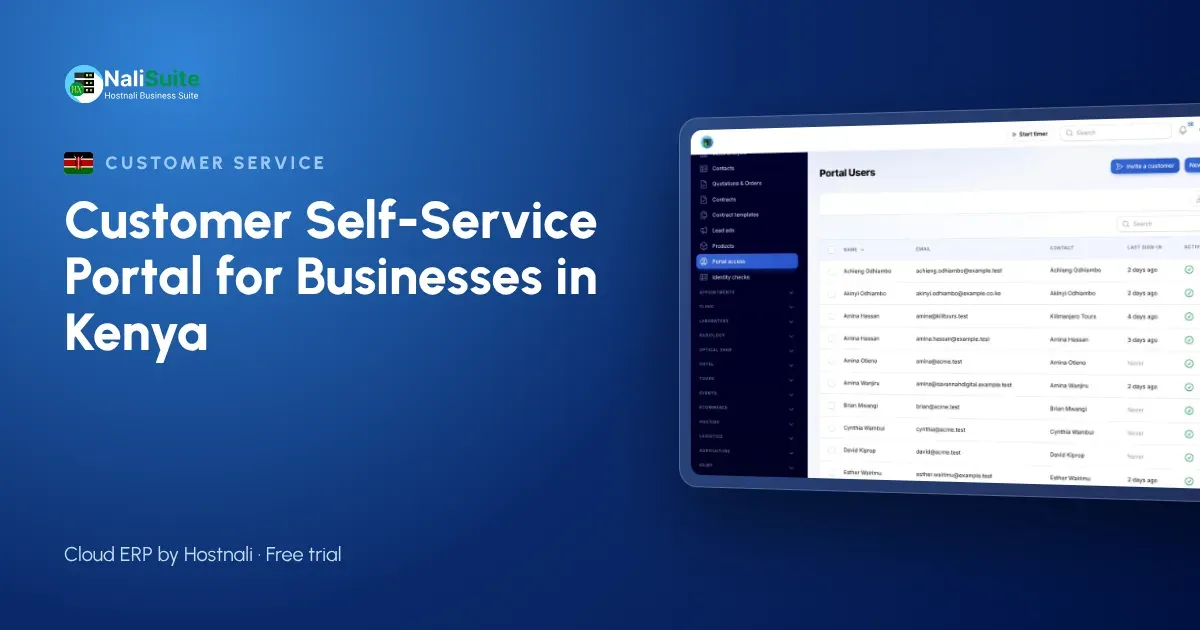
A customer self-service portal answers those questions before anyone picks up the phone. This guide explains what a portal does, what Kenyan customers actually use it for, and how to launch one without confusing the people who pay you.
Why customers keep calling you
Most repeat calls are not complaints. They are requests for information that already exists somewhere in your business: an invoice in someone’s email, a balance in the accounts file, a delivery note on a desk. The customer cannot see any of it, so they ask.
The usual pattern in a growing Kenyan business looks like this:
- An accounts clerk spends mornings forwarding PDF invoices that customers have lost.
- A director is asked for a statement before a customer’s own month-end.
- Sales staff chase approval of a quotation by WhatsApp, then retype it when it is accepted.
- Someone asks for the paybill number again, then sends M-Pesa without the invoice reference, and the payment has to be matched by hand.
A portal fixes the root cause: customers get their own window into the records that concern them.
What a self-service portal gives your customers
In NaliSuite, the customer portal is one of the built-in apps on every plan. Each customer contact signs in with their email and sees only their own organisation’s records. From there they can:
- See every invoice and statement, and download copies whenever they need them.
- Pay what they owe by M-Pesa or card, so the payment arrives already linked to the right invoice. See how mobile money payments work.
- Review and accept quotations online and follow their orders afterwards.
- Open support tickets and read your knowledge base articles.
- Download shared documents such as contracts, price lists and certificates, and sign online where you ask them to.
- Manage subscriptions, where you allow it.
Because the portal reads the same records as invoicing, sales and the helpdesk, nothing needs to be uploaded twice.
Setting it up in five steps
1. Clean your customer records first
A portal is only as good as the data behind it. Merge duplicate customers, check email addresses and add each customer’s KRA PIN where you have it. The contacts app can find and merge duplicates by name, email or phone without losing invoice history.
2. Decide what each customer will see
Start with invoices, statements and payments. Add quotations, tickets and documents once customers are comfortable. Showing everything on day one can overwhelm people who only ever wanted their balance.
3. Invite a small group
Pick ten customers who already pay online and who will tell you honestly what is confusing. Invite their accounts contacts by email from the portal. Each person signs in with a secure link or a password.
4. Write two or three help articles
Short articles answer the questions the first group asks: “How do I pay by M-Pesa?”, “Where do I find my statement?”, “How do I accept a quotation?” Publish them in the knowledge base so they appear in the portal.
5. Invite everyone and change your invoice footer
Once the pilot group is happy, invite the rest and add a line to every invoice and statement: “View and pay your invoices online at our customer portal.” Habits change faster when the portal link is on every document.
What to measure after launch
You will know the portal is working when:
| Measure | What to look for |
|---|---|
| Calls and emails asking for invoices | Fewer each month |
| Payments arriving with the right invoice reference | More of them, less manual matching |
| Days from quotation sent to accepted | Shorter, because acceptance is one click |
| Tickets opened in the portal | More tickets in the system, fewer lost in personal inboxes |
These are your own numbers, so compare this quarter with last quarter rather than with anyone else’s business.
Protecting customer data
A portal holds personal data, so the Data Protection Act, 2019 applies, overseen by the Office of the Data Protection Commissioner (ODPC). Invite only the contacts a customer has authorised, remove access when someone leaves that customer’s company, and share only the documents that customer needs. Check the current guidance with the ODPC if you are unsure what you may share.
Where a portal fits with your other tools
The portal works best when the rest of the business runs in one system. Invoices come from invoicing, tickets from the helpdesk, and files from documents. If you still keep invoices in a spreadsheet, start with the free invoice generator to get your invoice layout right, then move to the full system.
Frequently asked questions
Is the customer portal an extra cost in NaliSuite?
No. It is a built-in app on every plan, including Starter at Ksh 250 a month.
Can customers see each other’s invoices?
No. Each portal user only sees the records of their own organisation.
Can the portal run on my own domain?
Yes, on plans that include a custom domain or with the custom domain add-on.
Do customers need to install an app?
No. The portal opens in any browser, on a phone or a computer.
Try NaliSuite
Give your customers a portal where they pay by M-Pesa, download statements and accept quotations without calling you. Compare the NaliSuite plans and start with a free trial.