
Recommended Services
Supported Scripts
WordPress
Hubspot
Joomla
Drupal
Wix
Shopify
Magento
Typeo3
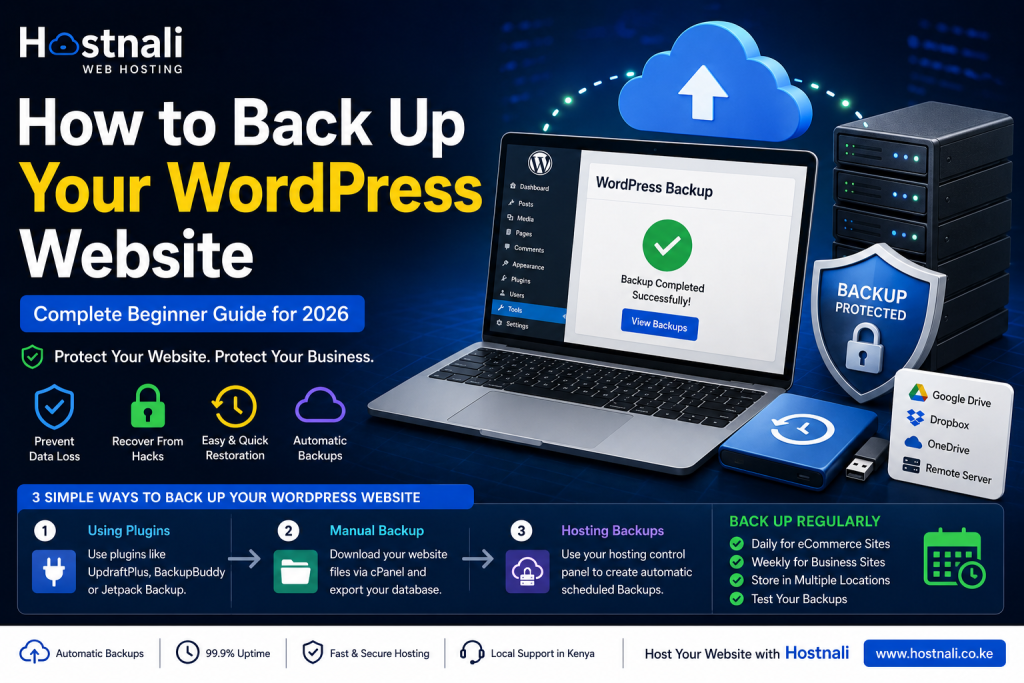
How to Back Up Your WordPress Website
Imagine spending months building your website only to lose everything because of a hacked site, failed update, server issue, or accidental deletion. Unfortunately, website data loss happens more often than many business owners expect.
Backups act as your website’s insurance policy. They allow you to restore your website quickly when something goes wrong.
Whether you run a blog, ecommerce store, school portal, company website, or business website, regular backups are essential.
This guide explains everything you need to know about WordPress backups and how to protect your website in 2026.
Quick Answer / TL;DR
- Backups protect your website from data loss.
- Always back up files and databases.
- Use automatic backups whenever possible.
- Store backups in multiple locations.
- Test backups regularly.
- Reliable hosting providers often include backup solutions.
What Is a Website Backup?
A website backup is a copy of your website data that can be restored if problems occur.
A backup usually includes:
- Website files
- WordPress core files
- Themes
- Plugins
- Images
- Databases
- Settings
Without backups, recovering lost website data can be difficult or impossible.
Why Website Backups Matter
Backups protect your website against:
Hacking Attacks
Hackers may damage or alter website files.
Failed Updates
Plugin or WordPress updates sometimes cause issues.
Human Errors
Accidental deletion happens more often than expected.
Server Problems
Hosting issues can occasionally affect websites.
Malware Infections
Malware can damage files and databases.
What Happens If You Don’t Have Backups?
Without backups you may experience:
- Permanent data loss
- Downtime
- Lost customers
- Reduced trust
- SEO problems
- Lost sales
Recovering from major website problems becomes much more difficult.
Types of WordPress Backups
Full Backup
Includes:
- Website files
- Database
- Themes
- Plugins
- Media files
Best for complete protection.
Database Backup
Includes:
- Posts
- Pages
- User information
- Website settings
Does not include images or themes.
Incremental Backup
Only saves changes since the previous backup.
Benefits:
- Faster backups
- Less storage use
Method 1: Back Up WordPress Using Plugins
Plugins provide one of the easiest backup methods.
Popular backup plugins include:
- UpdraftPlus
- BackupBuddy
- Jetpack Backup
- All-in-One WP Migration
Typical process:
Step 1
Install the backup plugin.
Step 2
Configure backup settings.
Step 3
Choose backup frequency.
Examples:
- Daily
- Weekly
- Monthly
Step 4
Select storage location.
Step 5
Run backup.
Method 2: Manual Backup Using cPanel
You can also create backups manually.
Step 1: Log into cPanel
Open your hosting dashboard.
Step 2: Open File Manager
Locate website files.
Step 3: Download Website Files
Compress and download:
- public_html folder
- Website files
Step 4: Export Database
Go to:
phpMyAdmin
Select:
Export → Quick Export → Download
Manual backups require more effort but provide additional control.
Method 3: Use Hosting Backup Features
Many hosting providers include backup tools.
Benefits:
- Automatic scheduling
- Easier restoration
- Reduced manual work
Hosting-level backups can simplify website management significantly.
Best Places to Store Website Backups
Avoid storing backups in only one location.
Recommended options:
Cloud Storage
Examples:
- Google Drive
- Dropbox
External Hard Drives
Provides offline storage.
Remote Servers
Adds another protection layer.
Hosting Storage
Useful as an additional backup location.
How Often Should You Back Up Your Website?
Recommended schedules:
Personal Blog
Weekly
Business Website
Daily or weekly
Ecommerce Store
Daily
News Website
Daily or multiple times daily
High-Traffic Website
Frequent automatic backups
Common Backup Mistakes to Avoid
Not Backing Up Regularly
Old backups may not contain recent changes.
Keeping Only One Backup Copy
Always use multiple storage locations.
Never Testing Backups
A backup that cannot restore properly is useless.
Forgetting Database Backups
Files alone are not enough.
Storing Backups on the Same Server
If the server fails, backups may also be lost.
How to Restore a Backup
General restoration process:
Step 1
Upload website files.
Step 2
Restore database.
Step 3
Reconnect website configuration.
Step 4
Test website functionality.
Many plugins simplify restoration with one-click recovery.
Signs You Should Restore a Backup
Consider restoring when:
- Website becomes inaccessible
- Malware infects files
- Updates break functionality
- Important content disappears
- Website displays errors
Why Reliable Hosting Matters for Backups
Quality hosting providers can simplify backup management.
Good hosting should include:
- Backup tools
- Secure storage
- Easy restoration options
- Stable servers
- Technical support
Why Choose Hostnali for WordPress Hosting?
Hostnali provides hosting solutions designed for reliability and website protection.
Benefits include:
- Fast NVMe hosting
- WordPress optimization
- SSL certificates
- Reliable support
- Easy hosting management
- M-Pesa payment support
Whether you run a business website, school portal, ecommerce store, or blog, having dependable hosting helps reduce website risks.
Frequently Asked Questions
Are backups really necessary?
Yes. Backups protect against unexpected website problems and data loss.
How often should I back up my website?
Daily backups are recommended for active websites.
Are backup plugins free?
Many backup plugins offer free versions with basic features.
Can I restore my website after hacking?
Yes, if you have a clean backup available.
Should I store backups on my hosting server only?
No. Use multiple storage locations.
Does hosting affect backup reliability?
Yes. Reliable hosting often improves backup and restoration options.
Final Thoughts
Website backups are one of the most important parts of website management. They protect your work, reduce downtime, and provide peace of mind if problems occur.
Creating regular backups takes only a small amount of effort compared to the cost of losing an entire website.
Ready to protect your WordPress website?
Explore Hostnali WordPress Hosting Solutions and build your website with confidence.